
Introduction
There is a moment in every first gaming PC build when the parts list starts to look like a foreign language. CPU, GPU, TDP, PCIe, NVMe, DDR5 — everything seems interconnected and the order of decisions is unclear. Buy the wrong GPU for your resolution. Install RAM in the wrong slots. Pair a high-end processor with a budget cooler. Any one of those mistakes costs you either money or performance you already paid for.
This gaming PC components guide exists to cut through that confusion. Not by simplifying what is genuinely complex, but by explaining each component in plain terms — what it does, why it matters, and how it fits into the larger machine. The goal is a build where every part earns its place and nothing holds the rest back.
A gaming PC is a system. That word matters. No single component determines your experience in isolation. A $700 GPU paired with a bottlenecked CPU is not a $700 experience. Fast RAM installed in the wrong slots runs at half its rated bandwidth. A PSU that cannot cleanly deliver power under load will make an otherwise excellent machine unstable. The interactions between components define the result as much as the components themselves.
The six areas covered here — CPU, GPU, RAM, storage, motherboard and PSU, and cooling — form the complete picture. Each section is detailed enough to act as a decision guide on its own and points toward deeper articles when you want to go further. By the end, you will have a clear view of what each component actually does, which specifications matter and which are marketing, and how to balance a build at any budget from around $700 to $3 000 and above.
One thing worth knowing before diving in: this guide is written from real building experience across dozens of machines. The recommendations reflect what consistently works — not what has the best spec sheet number on any given release day.
Section 1 — The CPU: the engine behind every frame
The CPU is where most builds should start. Your processor choice dictates which motherboard socket you need, which memory generation is compatible, and it sets a performance ceiling that the GPU and other components have to work within. Get this right and the rest of the build flows logically. Start with the GPU and choose a CPU afterward and you risk mismatches that cost real-world performance.
What the CPU does in gaming
The common shorthand is that the GPU renders your game and the CPU runs everything else. That is broadly accurate. The processor handles game engine logic, physics calculations, NPC behavior, audio processing, network packets in multiplayer, and the constant stream of inputs arriving from your mouse and keyboard every few milliseconds. In competitive titles like CS2 or Valorant running at 240fps, the CPU feeds the GPU a new frame request hundreds of times per second. If the processor cannot keep up, the GPU sits idle waiting for data. Frame rates drop. Frame times become inconsistent. That stuttering, erratic feel that appears even on paper-strong machines is almost always a CPU bottleneck.
The specifications that actually matter
Core count is the first number people look at and often the most misread. For gaming in 2025, six to eight physical cores is the sweet spot. Below six and you will feel it in CPU-heavy open-world titles. Above eight, the gaming benefit is marginal — extra cores benefit streaming, video editing, and 3D work far more than raw frame rates.
Clock speed, measured in GHz, governs how fast each core executes instructions. Higher boost clocks generally translate to better single-threaded performance, which games still depend on heavily. Most game engines process their primary logic thread on one fast core rather than distributing work evenly across many.
Cache is the variable most buyers overlook. AMD’s 3D V-Cache technology stacks additional L3 cache directly on the chip die. The Ryzen 7 7800X3D carries 96 MB of L3 where a standard chip might have 32 MB. That difference is not theoretical — in benchmark after benchmark across 2024 and 2025, V-Cache chips lead gaming rankings at resolutions where the CPU is the limiting factor. The reason is memory latency: games repeatedly access the same data, and having that data sitting on the chip itself rather than fetching it from system RAM eliminates a small but consistent delay that compounds across millions of frame operations.
TDP tells you how much heat a chip produces under sustained load. A 65W processor will run comfortably under almost any decent tower air cooler. A 170W chip needs a capable cooling solution. Pairing a high-TDP processor with an underpowered cooler results in thermal throttling — the chip drops its clock speeds to protect itself, and you lose performance you already paid for.
Intel vs AMD in 2025
Both companies offer competitive gaming CPUs and the honest answer is that neither dominates across all price points. AMD’s Ryzen 7000 and 9000 series runs on the AM5 platform with DDR5 memory support. The Ryzen 7 7800X3D remains the most consistently recommended gaming CPU at the high end — its 3D V-Cache advantage is real and measurable in titles where the CPU matters. Intel’s Core Ultra 200 series (Arrow Lake) on LGA1851 offers strong efficiency and excellent platform features. The older Core i5-13600K on LGA1700 continues to represent outstanding value at the mid-range as prices have dropped significantly.
Platform matters as much as the chip itself. AM5 is AMD’s long-term socket with confirmed support through future CPU generations. LGA1700 is reaching the end of its product cycle. If longevity matters to your buying decision, AM5 gives you more upgrade headroom within the same motherboard.
Matching CPU to GPU and resolution
The most important pairing decision: your CPU and GPU need to be in balance. At 1080p the CPU does more relative work because frames complete quickly and the processor becomes the limiting factor at high frame rates. At 4K the GPU is so dominant that almost any modern mid-range CPU keeps up. 1440p sits between those extremes — a balanced build with matched CPU and GPU tiers performs best here.
A practical guideline is to spend roughly equivalent amounts on CPU and GPU. A $500 graphics card matched with a $120 processor will bottleneck in most demanding titles. The CPU does not need to cost the same — but the tier should be comparable.
Section 2 — The GPU: where your frames actually come from
If the CPU is the engine running the game world, the GPU is the factory printing every image that appears on your screen. It takes the geometric data the CPU prepares — millions of triangles describing every surface in the scene — and transforms them into the lit, shaded, textured pixels your monitor displays. At 1440p and above, the GPU is the dominant factor in your frame rate. Choosing the right one matters more than any other single component decision in a gaming build.
What the GPU does
Every frame your game produces passes through the graphics pipeline. The GPU processes geometry, applies lighting calculations, handles shadows, draws textures at the correct resolution, and in modern titles applies real-time ray tracing to simulate how light physically interacts with surfaces. It also runs upscaling algorithms — DLSS on NVIDIA hardware, FSR on AMD — that allow the card to render at a lower internal resolution and reconstruct the image to your target resolution with minimal visible quality loss.
The GPU has its own dedicated memory, called VRAM. This holds the textures, frame buffers, and geometry data the card needs for the current scene. When VRAM fills up, the system has to fetch data from slower system RAM or storage. The result is stuttering, texture pop-in, and significant frame time spikes — the kind of problem that shows up as a terrible experience even when average frame rates look acceptable.
VRAM — the specification that determines longevity
At 1440p with high-quality texture settings in 2025, 12 GB of VRAM is the practical minimum. Eight gigabytes is survivable in less demanding titles but several recent releases push past that ceiling at maximum settings. Sixteen gigabytes gives genuine headroom across everything currently on the market and positions the card well for the next two to three years of releases.
Open-world games are the most demanding on VRAM. Titles like Cyberpunk 2077, Hogwarts Legacy, and Star Wars Outlaws load enormous amounts of texture data simultaneously. Running those games at maximum texture quality on a card with 8 GB means making a choice between quality and stability. With 16 GB, that choice disappears.
Ray tracing and upscaling — what to actually expect
Ray tracing simulates physically accurate light behavior: reflections, shadows, global illumination, and ambient occlusion. In titles that implement it well — Alan Wake 2, Cyberpunk 2077 with path tracing, Fortnite — the visual improvement is genuine and noticeable. The performance cost is also genuine. Ray tracing requires significantly more GPU work per frame than traditional rasterization.
NVIDIA holds a real advantage in ray tracing performance through dedicated hardware on its Tensor and RT cores. The RTX 40 series processes ray tracing workloads more efficiently than AMD’s RDNA 3 architecture at the same price point. That gap is meaningful if ray tracing is a priority. If you primarily play titles that do not use ray tracing heavily — competitive games, older releases, esports titles — the gap becomes irrelevant and AMD’s rasterization performance per dollar is strong.
DLSS 3 and FSR 3 both deliver upscaled images that look better than native resolution at lower presets and comparable at quality presets. DLSS generally produces cleaner output thanks to its dedicated Tensor Core hardware. FSR runs on any GPU, including NVIDIA cards, making it the broader compatibility option. DLSS 3’s Frame Generation feature inserts AI-generated frames between rendered ones, which can effectively double the displayed frame rate in GPU-limited scenarios — useful at 1440p and 4K where frame rates might otherwise fall short of a high-refresh monitor’s target.
Choosing by resolution and use case
At 1080p, mid-range cards are more than adequate for most titles. The GPU completes frames quickly enough that the CPU often becomes the bottleneck before the GPU is fully stressed. Spending heavily on a flagship GPU for 1080p gaming is rarely the right call.
At 1440p the GPU takes clear ownership of performance. This is where cards like the RX 7900 GRE and RTX 4070 Super find their best argument. Both deliver 120fps and above in most titles at high settings without requiring upscaling. The RX 7900 GRE carries 16 GB of VRAM at a competitive price. The RTX 4070 Super offers better ray tracing performance and DLSS 3 support.
At 4K the GPU is everything. Only high-end cards — RTX 4080 Super, RTX 4090, RX 7900 XTX — maintain 60fps and above at native 4K with maximum settings in demanding titles. Upscaling becomes a practical tool rather than a compromise at this resolution, and DLSS quality preset at 4K produces results that are difficult to distinguish from native rendering.
The GPU’s relationship to the rest of the build
A GPU purchase does not happen in isolation. The card needs a PSU that can deliver clean power at its peak draw — the RTX 4080 Super peaks above 320W and total system draw on a high-end rig can exceed 600W. It needs a case with enough physical length to accommodate it (some cards exceed 340mm). And it needs a CPU tier that can actually feed it frames without becoming the constraint.
That last point connects back to Section 1: GPU and CPU tier should be matched. A flagship GPU paired with a budget processor produces a frustrating experience at high frame rates — the card is waiting on the CPU more often than it should be.
Section 3 — RAM: the component most people get almost right
RAM sits in an interesting position in most gaming PC discussions. It rarely gets the attention of the CPU or GPU debate, but the mistakes people make with it are consistent and entirely avoidable. Wrong capacity, wrong slots, wrong speed profile left unenabled in the BIOS — any one of those quietly costs performance without ever showing an obvious error message.
What RAM does in a gaming context
When you launch a game, assets load from your storage drive into RAM. Textures, audio files, world geometry, scripts — all of it moves into memory so the CPU can access it quickly without going back to the drive constantly. The more RAM you have, the more of the game world stays loaded at once. When RAM fills up the system starts shuffling data in and out of storage mid-session. That is when you see the stutters and frame time spikes that make a game feel worse than its average frame rate suggests.
It is worth distinguishing RAM capacity from RAM speed. Capacity determines how much data stays in the fast pool. Speed determines how quickly that data moves between RAM and CPU. Both matter, but they solve different problems.
16 GB vs 32 GB — the honest answer for 2025
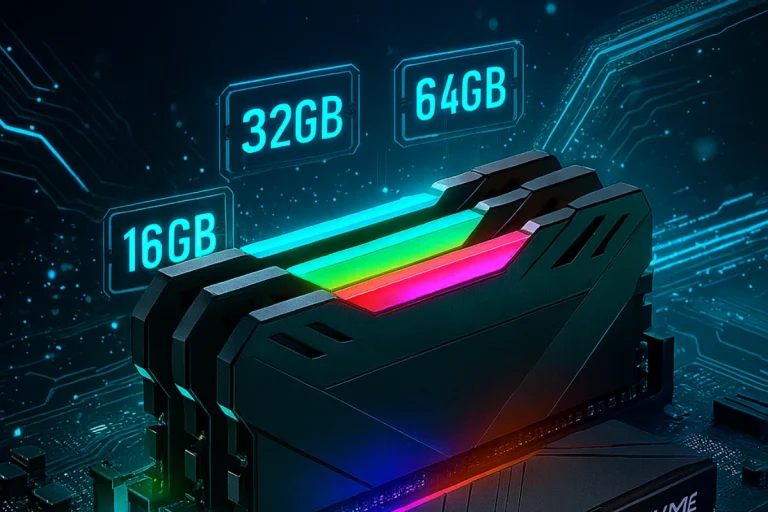
Two years ago 16 GB was a comfortable gaming target. In 2025 it is the minimum. Several major releases now list 16 GB as their recommended specification rather than their minimum. Windows 11 consumes 3 to 4 GB at idle. Add Discord, a browser with a few open tabs, and a game overlay and you are already at 6 to 7 GB before the game has loaded a single asset. In a demanding open-world title at high settings, total memory pressure can push past 14 GB on a 16 GB system — leaving almost no headroom for anything else.
32 GB is where any new gaming build should start in 2025. The price difference between 16 GB and 32 GB DDR5 kits has narrowed to the point where the delta is rarely more than $30 to $40. That is a small insurance premium against running into a ceiling in a game that releases six months after you finish the build. 64 GB serves video editors and 3D artists who run production software alongside games — for pure gaming it is capacity you will never use.
DDR4 vs DDR5
DDR5 is standard on AMD AM5 and Intel LGA1851 platforms. DDR4 remains the memory type for AM4 builds and some LGA1700 boards. The two are physically incompatible — different notch positions prevent accidental installation. There is no adapter and no workaround.
In gaming performance the real-world gap between DDR4 and DDR5 is smaller than the marketing suggests. At matched latency tiers the difference in most titles is 2 to 5 percent. DDR5 offers substantially higher bandwidth and larger capacity options per stick, which matters more as memory requirements continue to grow. If you are building on AM5 or LGA1851 today, DDR5 is simply what the platform uses. If you are still running AM4, DDR4 is perfectly capable and there is no justification for switching platforms just to access DDR5.
Memory speed and the AMD Infinity Fabric
Speed matters more than most buyers realise, and it matters differently depending on your platform. AMD Ryzen processors are particularly sensitive to memory frequency because the Infinity Fabric — the interconnect that links CPU cores and the memory controller — runs at half the memory frequency. Faster RAM means faster internal communication across the chip.
AMD has a documented sweet spot for Ryzen 7000 and 9000 series: DDR5-6000 at CL30. Below that frequency you leave measurable performance on the table. Above it the memory controller divides its ratio differently and you can actually see performance regress. Buying an expensive DDR5-7200 kit for an AM5 build is a common and entirely avoidable mistake.
Intel platforms are less sensitive to memory frequency but still benefit from staying within a sensible speed range. DDR5-5600 to DDR5-6400 covers most Intel LGA1851 builds without chasing returns that disappear in real-world use.
Dual-channel configuration — the detail that surprises people
Installing two sticks of RAM in the correct slots doubles effective memory bandwidth compared to a single stick or two sticks in adjacent slots. The performance difference between single-channel and dual-channel is measurable in benchmarks and visible in frame time consistency in certain titles. It is not subtle.
On a standard four-slot motherboard, the correct dual-channel configuration is typically slots 2 and 4 — the second and fourth slots counting from the CPU socket. These are often labelled A2 and B2. Check your motherboard manual before installing anything. The recommended configuration appears in the first few pages of every board manual and takes thirty seconds to verify.
XMP and EXPO — the setting most people forget
Buying DDR5-6000 RAM and installing it without checking the BIOS means your system is almost certainly running at DDR5-4800 — the base JEDEC specification that boards default to. The rated speed only activates when you enable XMP (on Intel platforms) or EXPO (on AMD platforms) in the BIOS. It is one toggle, takes under a minute, and unlocks the performance you paid for. Forgetting it is the single most common RAM mistake across every build forum and support thread.
Section 4 — Storage: load times, speed, and how much space you actually need
Storage is the component where marketing numbers and real-world gaming impact diverge most dramatically. Drive manufacturers compete on sequential read speeds because those are the figures that look impressive on specification sheets. A PCIe 5.0 NVMe drive doing 14 000 MB/s reads is an extraordinary piece of engineering. It is also a drive whose gaming load time advantage over a PCIe 4.0 unit doing 7 000 MB/s is measured in fractions of a second in most current titles.
That does not mean storage choice is irrelevant. It means the relevant specifications are different from the headline number. Understanding which metrics actually affect gaming helps you spend money where it matters and avoid paying a premium for headroom games cannot currently use.
What storage does in a gaming PC
Every game lives on your storage drive. When you launch it, assets move from the drive into RAM and VRAM. Load screen duration depends almost entirely on how fast that transfer happens. On a modern PCIe 4.0 NVMe drive, a game that took 35 seconds to load from a spinning hard drive might take two seconds. The subjective improvement is enormous even if the sequential speed difference between a good PCIe 4.0 drive and a flagship PCIe 5.0 drive translates to under a second in the same scenario.
Beyond initial loads, open-world games stream assets continuously as you move through the environment. New areas, new textures, new geometry — all of it has to arrive fast enough that you never see the seams. This is where random read performance matters more than sequential speed, and where a drive with strong IOPS figures outperforms a technically faster drive with weaker random access characteristics.
PCIe 4.0 vs PCIe 5.0 — where the gap actually matters
PCIe 4.0 NVMe drives reach sequential read speeds of 7 000 to 7 500 MB/s. PCIe 5.0 drives push past 12 000 MB/s. In the vast majority of games released through 2025 the real-world load time difference between those two tiers is negligible. Games do not stream data fast enough to saturate a PCIe 4.0 drive consistently.
The argument for PCIe 5.0 is forward-looking. Microsoft’s DirectStorage API — which allows titles to stream compressed assets directly from the NVMe drive to GPU memory, bypassing the CPU decompression step — benefits meaningfully from higher sustained throughput as game worlds grow in complexity. A handful of titles implement it well today. More will follow. If you are building a system you plan to run for four or five years, a PCIe 5.0 drive positions you ahead of that curve.
One practical consideration with PCIe 5.0: the controllers run significantly hotter than their PCIe 4.0 counterparts. Without adequate thermal management — a heatsink on the M.2 slot, which most current motherboards provide — sustained write workloads can trigger thermal throttling and drop speeds dramatically. Always install a heatsink on a Gen 5 drive.
The specifications that matter most
Sequential read speed is the number on the box. Random read speed — measured in IOPS — is the number that governs how a drive feels during gameplay. Games read thousands of small files simultaneously rather than one large sequential stream. A drive with strong random read performance handles that workload with lower latency and less visible stuttering during asset streaming.
DRAM cache is the second key specification. High-quality NVMe drives include a small DRAM module that stores the drive’s address mapping table in fast memory. Without it, the controller has to fetch that mapping from the flash itself, adding latency on every operation. DRAMless drives perform adequately under light gaming loads but slow down under mixed read and write pressure. For a primary gaming drive, DRAM is worth prioritising.
NAND type completes the picture. TLC (triple-level cell) NAND offers the best balance of speed, write endurance, and cost for a primary drive. QLC (quad-level cell) NAND stores more data per cell but writes more slowly and wears faster. QLC drives are reasonable for secondary storage where reads dominate. For the drive your OS and active game library lives on, TLC is the correct choice.
How much storage capacity a gaming build needs
Game install sizes have grown significantly. A single AAA title regularly requires 80 to 150 GB. A realistic library of ten to fifteen games across different genres can consume 600 to 900 GB before you add the operating system, applications, and any media files. A 1 TB NVMe drive fills faster than most builders expect.
The practical recommendation for most builds is a 2 TB NVMe SSD as the primary drive. It provides enough space for the OS, a healthy active game library, and breathing room so the drive never approaches the 80 to 85 percent capacity threshold where SSD performance begins to degrade. Beyond the primary drive, a large SATA SSD or hard drive for cold game storage — titles you play occasionally rather than daily — is a cost-effective way to expand total capacity without paying NVMe prices for every gigabyte.
The drive that earns its place in most builds
The WD Black SN850X in its 2 TB configuration sits at the top of PCIe 4.0 gaming drive recommendations for good reason. It pairs a DRAM cache with TLC NAND, reaches the peak of what PCIe 4.0 can deliver in both sequential and random read performance, runs cool enough under typical gaming workloads that thermal throttling is not a concern, and carries full DirectStorage compatibility. It is not cheap but it is not asking you to pay a PCIe 5.0 premium for performance games cannot currently use.
For builds where budget is tighter, the Samsung 990 Evo offers strong performance with DRAM support at a lower price point. For enthusiasts who want to be positioned for whatever DirectStorage-heavy titles arrive in 2026 and beyond, the Crucial T705 with its included heatsink is the current PCIe 5.0 recommendation — fast, reliable, and thermally managed out of the box.
Section 5 — Motherboard and PSU: the platform and the power
These two components receive less attention than GPU and CPU in most build discussions, and that is exactly where the problems start. The motherboard connects everything and determines what upgrade paths exist. The PSU feeds clean power to every component in the machine. Cut corners on either and the consequences range from capped performance to system instability to hardware damage during power events.
The motherboard — more than a connector
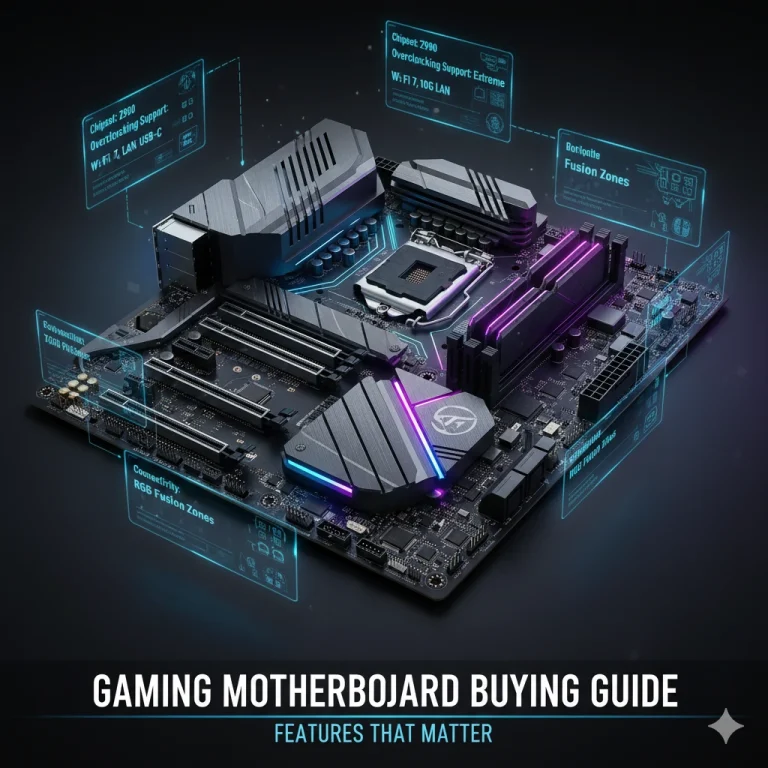
The motherboard’s most immediate job is compatibility. It determines which CPU socket is supported, how many RAM slots are available and at what maximum capacity, how many M.2 slots exist for NVMe drives, and which expansion card slots are available for the GPU and other peripherals. Every other component plugs into it. Getting the motherboard wrong means nothing else works as intended.
Form factor is the first decision. Full ATX boards are the standard for most mid-tower and full-tower cases, offering four RAM slots, multiple M.2 connectors, and full expansion options. Micro-ATX boards trade some of that expandability for a smaller footprint, fitting compact mid-towers. Mini-ITX boards go smaller still — two RAM slots, limited M.2 options, and tight thermal constraints in exchange for extremely compact builds. Most gaming builds land on ATX or Micro-ATX. Mini-ITX is for builders who prioritise size above all else and understand the compromises.
The chipset governs what the board can do. For AMD AM5 builds, B650 covers the needs of most gaming rigs — full PCIe 5.0 for the GPU slot, at least one PCIe 4.0 or 5.0 M.2 slot, and memory overclocking support via EXPO. X670E steps up to more PCIe 5.0 lanes across both CPU and chipset, better power delivery, and full CPU overclocking headroom. The price difference between B650 and X670E is significant, and for a gaming-focused build that is not pushing extreme overclocking, B650 captures 95 percent of the performance at a fraction of the cost.
For Intel LGA1700 builds, B760 handles mid-range gaming needs cleanly. Z790 adds full CPU and memory overclocking support alongside more connectivity options. LGA1851 is Intel’s current platform with the Core Ultra 200 series — B860 and Z890 fill the same tiered roles as their LGA1700 predecessors.
VRM quality and power delivery
One specification that board spec sheets underemphasise but that matters considerably for high-TDP builds is VRM quality — the voltage regulator module that converts and stabilises power for the CPU. A high-end processor drawing 150W or more needs a VRM that can sustain that delivery without overheating. Budget boards cut costs here. A Ryzen 9 or Core Ultra 9 paired with a budget B-series board with a weak VRM will throttle under sustained load not because the cooler is inadequate but because the board cannot deliver stable power.
For Ryzen 5 and Core i5 class chips at 65 to 125W, almost any reputable B-series board handles power delivery without issue. For flagship chips above 150W, spend the extra $40 to $60 on a board with a solid VRM rating. Hardware review sites publish VRM temperature data for most major boards — it is worth checking before finalising a pairing.
BIOS compatibility for newer CPUs
One practical detail that catches new builders off guard: a motherboard that was sold before a particular CPU launched may require a BIOS update to support that chip. AM5 and LGA1851 boards are generally well-maintained in terms of firmware updates, but buying an older board from inventory means verifying that the current shipped BIOS version supports your CPU. Some retailers offer BIOS update services at purchase. Otherwise you need access to an older supported CPU to boot the board and perform the update before your new chip will be recognised.
The PSU — where no one should compromise
The power supply unit is the component new builders most consistently under-budget, and it is the one where the consequences of a bad choice are most severe. A failing or inadequate PSU does not just underperform — it can damage every component it is connected to.
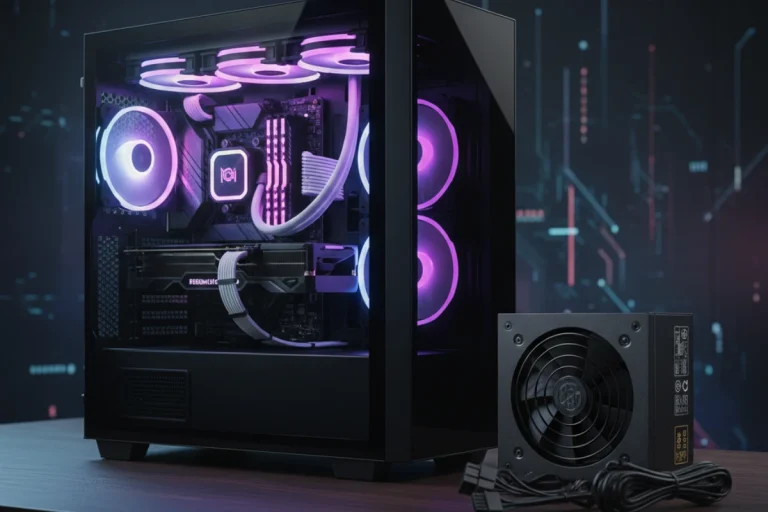
Wattage calculation starts with your GPU’s peak power draw. A high-end GPU like the RTX 4080 Super peaks at around 320W. Add a processor at full boost, case fans, storage drives, and system board draw, and a high-end build can peak at 600 to 700W under combined load. The standard recommendation is to add 20 to 25 percent headroom above your calculated peak to account for power spikes and to avoid running the PSU near its rated maximum, where efficiency drops and component stress increases.
Efficiency ratings tell you how much of the power drawn from the wall actually reaches your components. An 80 PLUS Gold PSU loses roughly 8 to 10 percent of input power as heat at full load. An 80 PLUS Platinum unit drops that to around 5 to 6 percent. Higher efficiency means less heat generated inside the PSU, which correlates with better component quality and longer lifespan. For a mid-range to high-end gaming build, 80 PLUS Gold is the sensible minimum. Platinum is worth the modest premium on builds drawing 750W or more.
Modularity is a practical consideration rather than a performance one. A fully modular PSU allows you to connect only the cables your build needs, which makes cable management significantly cleaner in mid to large cases. Semi-modular units include fixed cables for the main ATX connector and CPU power, with modular connections for everything else. Non-modular units come with all cables attached whether you use them or not. For a build inside a windowed case where cable management is visible, fully modular is worth paying for.
Brands with strong and consistent reliability track records include Seasonic, Corsair, be quiet!, and EVGA on their legacy units. No-brand units priced significantly below the market rate for their rated wattage should be avoided without exception. A PSU failure under load does not politely stop working — it can send voltage spikes through the system before any protection circuit responds.
Conclusion — Building a system, not a parts list
Every component covered in this guide exists in relationship to the others. That is the idea worth holding onto when a build starts to feel like a series of isolated purchasing decisions. The CPU and GPU need to be balanced for your target resolution. The RAM needs to be in the right slots at the right speed with the right profile enabled in the BIOS. The PSU needs headroom above your system’s peak draw. The motherboard needs to support your CPU from day one. The cooler needs to match the thermal output of the chip it sits on. Miss any one of those relationships and the machine underperforms in ways that are rarely obvious until you are already frustrated.
The good news is that getting it right is not complicated once you understand why each decision matters. You do not need to memorise specifications or follow enthusiast forums obsessively. You need to know your target resolution, set a realistic budget, match tiers across CPU and GPU, verify compatibility at every step, and resist the temptation to overspend on one component while cutting corners on another.
For most gaming builds in 2025, the path that makes the most sense looks roughly like this. A Ryzen 7 7800X3D or a Core i5-13600K at the mid-to-high end of the CPU range, paired with an RX 7900 GRE or RTX 4070 Super for 1440p gaming. Thirty-two gigabytes of DDR5-6000 in dual-channel configuration. A 2 TB PCIe 4.0 NVMe drive with DRAM and TLC NAND. A B650 or B760 motherboard with solid VRM ratings. An 80 PLUS Gold PSU with 20 percent headroom above calculated peak draw. A dual-tower air cooler or 240mm AIO depending on CPU TDP and case constraints. A 27-inch 1440p IPS panel at 144Hz minimum.
That combination lands somewhere between $1 200 and $1 600 depending on regional pricing and timing, and it produces a machine that handles everything currently available and most of what will release over the next three to four years without needing significant upgrades.
Budget builds around $700 to $900 follow the same logic at a lower tier — a Ryzen 5 7600 or Core i5-12400F, a mid-range GPU targeting 1080p or entry 1440p, 16 GB of DDR4 or DDR5 depending on platform, a 1 TB NVMe drive, and a quality 650W PSU. The principles do not change. The tier does.
Enthusiast builds above $2 500 simply move those tiers upward — flagship CPU, high-end GPU, larger NVMe capacity, 360mm AIO, premium board — without introducing fundamentally different logic. The relationships stay the same. The headroom increases.
One final thought. The best gaming PC is not the one with the highest benchmark scores. It is the one that runs the games you actually play, at the frame rates that feel smooth to you, on a monitor that shows you what the GPU is producing, without throttling, stuttering, or instability. That machine is achievable at almost every budget when the components are chosen thoughtfully and assembled correctly.
The five satellite articles linked throughout this guide go deeper into each component category for anyone who wants more detail before making a final decision. Start there if any section raised questions the overview did not fully answer.