

Maintaining optimal gaming PC performance extends far beyond the initial build, requiring ongoing attention to both physical care and strategic component upgrades. Regular maintenance prevents thermal issues that degrade performance over time, while thoughtful upgrade planning ensures your system remains competitive with evolving game requirements without unnecessary spending. This guide covers essential maintenance routines that take minutes but deliver lasting benefits, explains how to identify genuine upgrade needs versus marketing hype and outlines realistic upgrade cycles for each major component. Whether you started with a custom gaming PC build or pre-built system, proper maintenance extends your investment’s lifespan significantly.
After maintaining gaming PCs for more than twenty years, I’ve learned that small preventive measures save hundreds in replacement costs. A quick cleaning every few months prevents overheating damage while strategic upgrades maximize performance improvements per dollar spent.
Essential Maintenance Routines
Dust accumulation represents the primary enemy of gaming PC longevity. Dust acts as insulation trapping heat around components and clogging heatsink fins that dissipate thermal energy. Establishing a regular cleaning schedule based on your environment prevents thermal throttling and premature component failure.
Quarterly cleaning works well for most environments. Homes with pets or located in dusty areas benefit from monthly attention. The process takes 15-20 minutes and requires only compressed air and basic tools. Power down completely and unplug the system before cleaning. Remove side panels to access interior components.
Focus compressed air on GPU heatsinks, CPU coolers and case fans where dust concentrates. Short controlled bursts work better than continuous spraying. Hold fans stationary while blowing to prevent overspin damage. Clean intake filters under running water if your case includes removable mesh filters. Let filters dry completely before reinstalling.
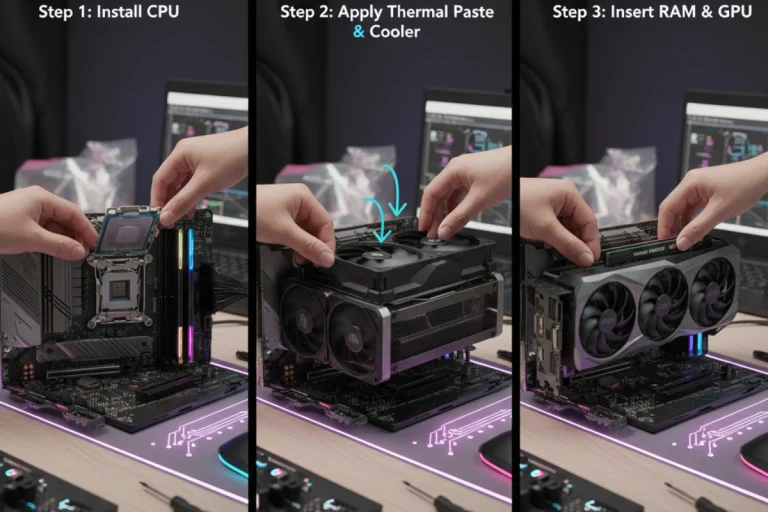
Thermal paste between CPU and cooler degrades over time reducing heat transfer efficiency. Most systems benefit from thermal paste replacement every 3-4 years. The process requires removing the CPU cooler, cleaning old paste with isopropyl alcohol and applying fresh paste. Temperatures typically drop 5-10 degrees after repasting on older systems.
Monthly Maintenance Checklist
- Check system temperatures under load (CPU and GPU should stay under 80°C)
- Monitor fan noise for bearing wear indicating replacement needs
- Verify adequate free storage space (keep 15-20% free for optimal SSD performance)
- Update graphics drivers if new versions released
- Check for Windows updates and security patches
Quarterly Maintenance Checklist
- Clean dust from all components using compressed air
- Wash and dry case intake filters
- Verify all fans spin freely without obstruction
- Check cable connections remain secure
- Review storage usage and archive old games
- Run disk cleanup and defragmentation (HDDs only)
Identifying When Upgrades Make Sense
Genuine upgrade needs manifest through specific performance issues rather than arbitrary time periods. Frame rate drops below 60fps at your target resolution and settings indicate GPU limitations. Stuttering during gameplay with GPU usage fluctuating wildly suggests CPU bottlenecks. Long loading times point to storage upgrades providing the most benefit.
Monitor component usage during gaming sessions using software like MSI Afterburner or HWMonitor. Consistent 95-100% GPU usage with lower CPU usage means the graphics card limits performance. High CPU usage across most cores while GPU sits at 60-70% indicates CPU bottlenecks. This data guides upgrade decisions toward components actually limiting performance.
Game requirements evolve constantly but not uniformly. Competitive multiplayer titles like Valorant or CS2 run well on older hardware while demanding single-player games push boundaries. Your gaming preferences determine upgrade urgency. Playing only esports titles extends hardware relevance while AAA gaming demands more frequent attention.
Upgrade Reality Check: Marketing pushes annual upgrades but most gaming PCs deliver excellent performance for 4-5 years. A well-chosen system from 2020 still handles modern games respectably in 2025. Upgrade when performance drops below acceptable levels, not because new products launch.
Strategic Component Upgrade Timing
Graphics cards require the most frequent upgrades determining gaming performance directly. A typical GPU remains competitive for 3-4 years before struggling with new releases at desired settings. However, GPU pricing volatility affects optimal upgrade timing more than performance degradation.
Wait for new generation launches to upgrade GPUs. Previous generation cards discount heavily when replacements arrive. An RTX 4070 dropping from $600 to $450 during RTX 5000 launch provides better value than buying at original pricing. Used GPU market also floods with reasonably priced cards from enthusiasts upgrading immediately.
CPU upgrades deliver diminishing returns for gaming workloads. A quality processor from 2020 still games excellently in 2025. Plan CPU upgrades every 5-6 years or when you notice consistent high CPU usage limiting frame rates. CPU bottlenecks manifest as low GPU usage despite turning down graphics settings.
RAM upgrades make sense when you consistently max out available memory. Gaming with Chrome, Discord and streaming software running simultaneously stresses 16GB. Upgrading to 32GB solves memory pressure issues immediately. However, going beyond 32GB provides zero gaming benefit currently.
| Component | Typical Lifespan | Upgrade Priority | Cost vs Performance | Upgrade Trigger |
|---|---|---|---|---|
| Graphics Card | 3-4 years | High | Excellent | Frame rates drop below 60fps at target resolution |
| CPU | 5-6 years | Medium | Moderate | Consistent 90%+ usage limiting frames |
| RAM | 5+ years | Medium | Good if needed | Memory usage consistently maxed out |
| Storage | 5-7 years | Low-Medium | Moderate | Long loading times or capacity limits |
| Power Supply | 7-10 years | Low | Poor | Insufficient wattage or failure signs |
| Motherboard | 6-8 years | Very Low | Poor | CPU upgrade requires new socket |
Compatibility Considerations for Upgrades
Platform compatibility limits upgrade flexibility over time. CPU socket changes require simultaneous motherboard and RAM replacement turning a simple CPU upgrade into a platform rebuild. Intel typically supports two CPU generations per socket while AMD demonstrated better longevity with AM4 supporting chips from 2016 through 2022.
GPU upgrades remain straightforward as PCIe maintains backwards compatibility. A new GPU works in older motherboards though potentially at reduced PCIe bandwidth. The performance difference between PCIe 3.0 and 4.0 for most GPUs remains minimal. Verify your case physically accommodates larger cards as GPU sizes increase with each generation.
Power supply wattage determines GPU upgrade options. A 550W PSU from your initial build may struggle with power-hungry modern cards. Calculate new system power requirements before purchasing GPUs. High-end cards like RTX 4080 or 4090 need 750W-850W PSUs. Budget another $100-150 for PSU upgrades if necessary.
RAM compatibility requires matching DDR generation and speed supported by your motherboard. DDR4 systems cannot accept DDR5 modules. Check motherboard specifications for maximum supported RAM speed and capacity. Some older boards cap at 64GB while newer models support 128GB or more.
Typical Gaming PC Upgrade Timeline
Year 1-2: No upgrades needed. Focus on maintenance and enjoying your system.
Year 3-4: Consider GPU upgrade if playing demanding new releases. Add storage if needed.
Year 5-6: GPU upgrade likely needed. Evaluate CPU bottlenecks. Consider platform refresh.
Year 7+: Full platform rebuild often more cost-effective than piecemeal upgrades.
Maximizing Resale Value and Upgrade ROI
Selling replaced components recovers portion of upgrade costs. GPUs maintain 40-60% of original value after 2-3 years depending on market conditions. List components on platforms like eBay, Facebook Marketplace or Reddit hardware swap forums. Clean components thoroughly and include original packaging when available to maximize sale prices.
Timing component sales strategically improves returns. Sell GPUs before new generation launches when demand peaks from gamers unable to secure new cards. Waiting until after launch floods the market with used cards dropping prices. CPU resale timing matters less as demand stays relatively stable.
Document system condition and performance before upgrades. Photos and benchmark scores help sell components by proving they function properly. Include accessories like extra cables or mounting hardware to increase perceived value. Be honest about usage history, especially for GPUs that might have been used for mining.
Upgrade Strategy: Plan upgrades around new product launches for best value. Sell old components immediately before replacements arrive. Buy new components shortly after launch when prices stabilize. This maximizes resale value while minimizing upgrade costs.
Software Maintenance and Optimization
Driver updates provide free performance improvements without hardware changes. Nvidia and AMD release game-ready drivers optimizing performance for new releases. Install these updates regularly through GeForce Experience or AMD Adrenalin software. However, skip drivers causing issues based on community feedback after releases.
Windows bloatware accumulates over time slowing system performance. Disable startup programs you don’t need running constantly. Background processes consume RAM and CPU cycles reducing gaming performance. Task Manager shows startup impact ratings helping identify programs safe to disable.
Storage optimization maintains SSD performance as drives fill with data. SSDs slow when capacity exceeds 80% as wear leveling algorithms struggle finding free blocks. Archive old games to external storage or uninstall titles you finished. Run Windows Disk Cleanup monthly removing temporary files and system cache.
Keeping your gaming PC properly maintained and strategically upgraded ensures years of reliable performance without breaking the bank. Understanding when and what to upgrade prevents wasting money on changes that don’t improve your actual gaming experience. Once you’ve mastered maintenance and upgrades, the final consideration involves deciding whether custom building or buying pre-built makes the most sense for your next system. Explore the complete comparison between custom and pre-built gaming PCs to determine which approach delivers the best value for your specific needs and technical comfort level.